




9 Common Excel Mistakes That Undermine Your Compliance And Legal Data
20 January 2026 · Loïc Ribet · 9 min · Updated: 19 January 2026
This is what a typical day in Compliance / Legal may sound like:
- Need a new register for process breaches? Let’s make an Excel file.
- An Employee register? Let’s make an Excel file.
- A Risk assessment register? You guessed it: Excel file.
- A Legal clause register? You guessed it again! Excel file.
Let’s get straight to the point: using Excel to store your compliance or legal data in 2026 is no longer best practice. I would even say that it has never been the case. But I’ve been there. We all have. It’s convenient. Sometimes it's our only option. Everyone does it. And on the surface, it works... until it doesn’t. The problem is that, one day, someone asks you for a report that sounds simple until you realise you can’t produce it, because the data just isn’t reliable. And I'm sure you have faced this situation too.
That’s why I have decided to kick off my first series of technical articles on compliance / legal data management. This will help, I hope, Compliance and Legal teams to improve the way they manage their operational data.
Since Excel is still a very common default choice for compliance and legal data management in 2026 (and chances are it will still be for the next years too), I will start by talking about Excel. This is particularly true for legacy processes. It may not be the best tool for the job, but since so many people rely on it, the real question is how to use it wisely and steer clear of disaster. Don't worry, there will be other articles on better alternatives to Excel.
In this first article, I’ll share 9 real-world examples of poorly designed Excel files I’ve come across and the problems they cause.
I’ll use an employee register as our example. Imagine you need to track your firm’s employees and their details: name, hire date, department, manager, role, and so on.
Splitting One Table Across Multiple Sheets
This is one of the most common Excel design errors. Instead of keeping your list in a single tab, you split the data across multiple sheets based on a criterion, for instance:
Split by Year of hire

Split by Status

Split by Department

It might look more organised, but in reality, this approach fragments your data and makes it nearly impossible to analyse or automate.
Keep all records in one sheet, and add columns to track hire year, status, or department. Don’t get me wrong, I understand the reasons for splitting data (easier access, fewer rows, no need to filter). But over time, this structure will cause more problems than it solves.
Merged Rows and Columns
This one deserves a banner: never, ever merge cells in Excel when you're storing data. Why? Because you are making things much harder for your future self and your data team. Merged cells interfere with filtering, sorting, analytics, and automation. They might look neater but they are never necessary.
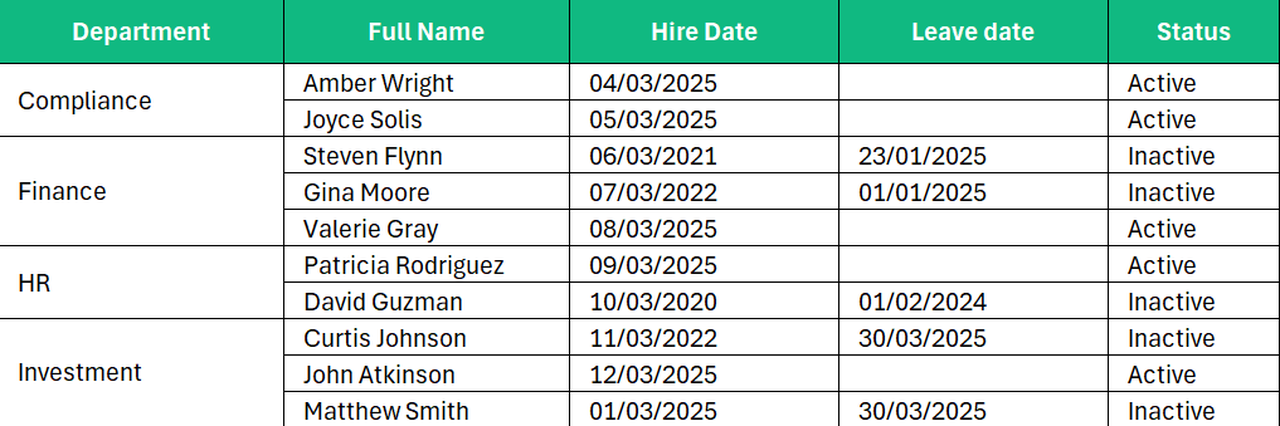
The issue would have been the same if columns are merged (no shown in the screenshot).
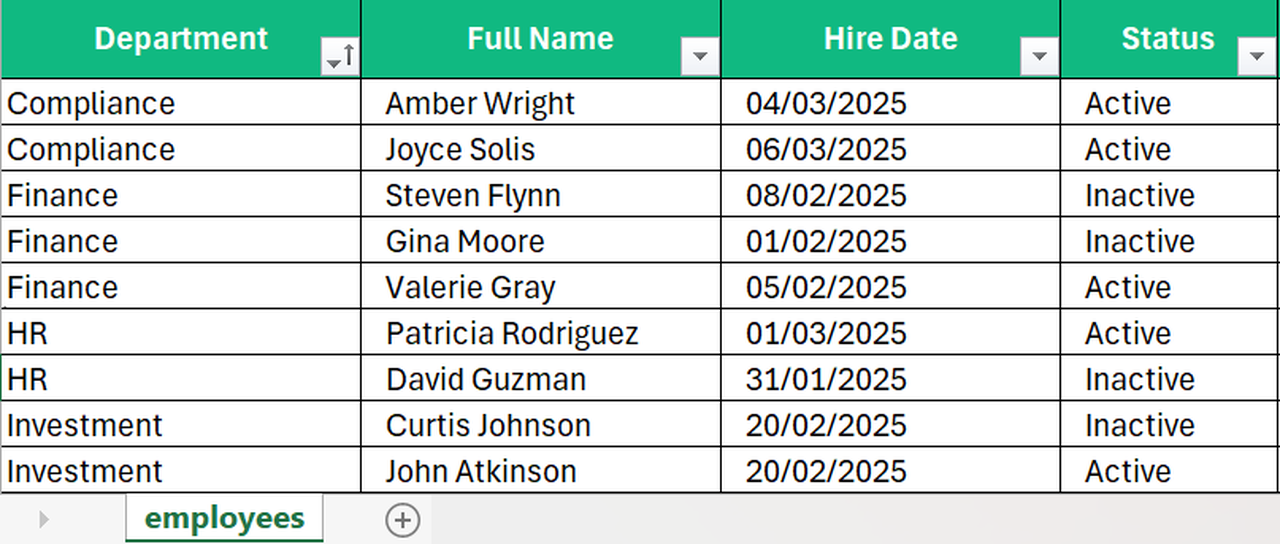
If you're tempted to merge cells to "clean up the view," resist. Repeat the data instead as shown below.
Leaving Cells Blank Instead of Repeating Values
This is a close cousin of merging cells. Rather than repeat a value for every row, people often leave cells blank. It might look tidier, but it creates chaos when it’s time to sort or analyse the data.
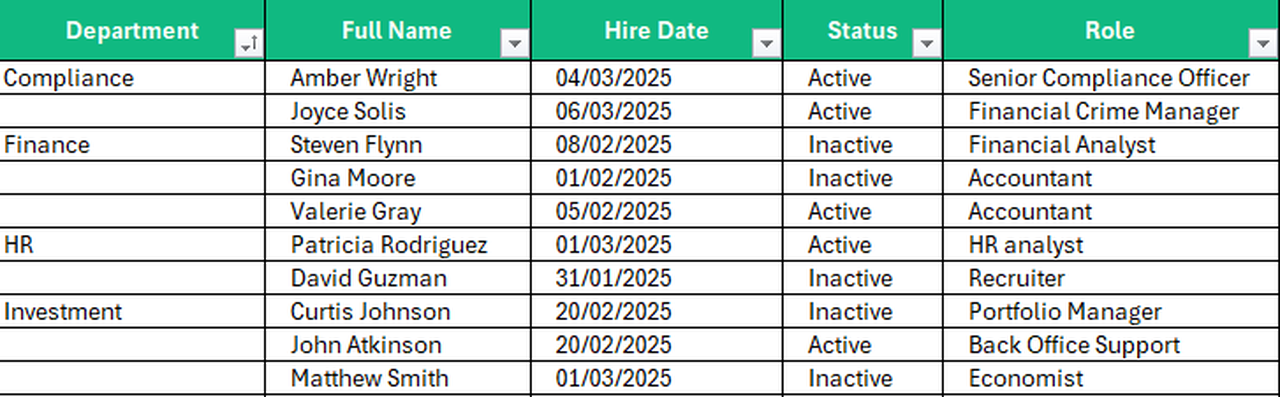
Repeat values consistently as shown in last screenshot of section "2. Merged Rows and Columns". Every row should be complete. Please note that I am not talking about the cases where the cells are empty because there is no value yet.
Mixing Data Types in a Single Column
Let’s say you're tracking employee hire dates. What should go in that column? A date, of course. But what is often happening in the real world? You may get entries like:
- 25/05/2016
- April 2025
- Monday 11 April 2025
- Unknown
- 2025
- n/a
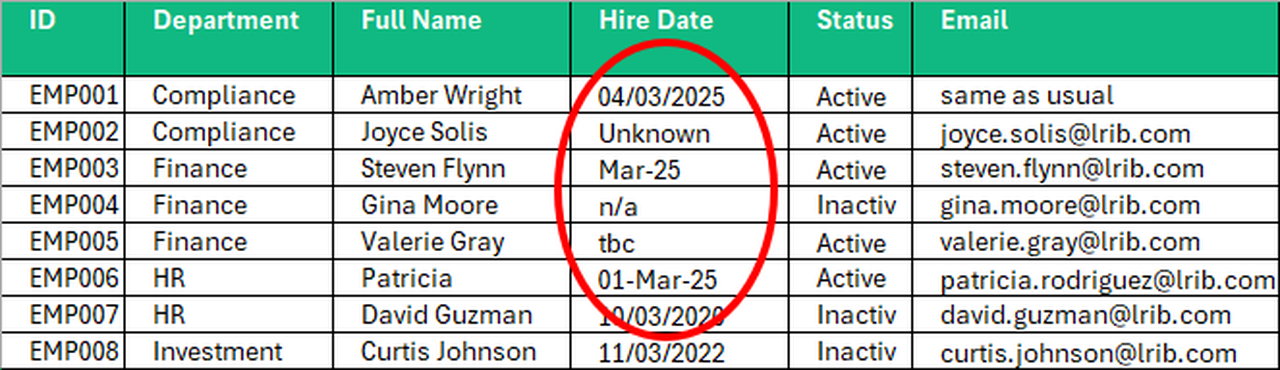
Suddenly, that “date” column contains a mix of dates, text, and numbers. This inconsistency damages data quality and makes analysis or automation much more difficult. It's often a consequence of the next issue: lack of data validation.
There are several solutions here: training the users of the spreadsheet, having a responsible person, but the best solution is to implement some sort of control on the input (i.e., data validation).
No Data Validation
By default, Excel won’t validate what users type. That means you could type “Unknown” in a column called “Hire date” and Excel accepts it. That’s a major issue when you are working with structured data. I would even say that it is one of the main reasons why Excel should not the used to store data. Sure, Excel offers some validation tools (like selecting a data type or drop-down lists), but they are:
- Time-consuming to implement
- Limited in complexity
- Easily bypassed (e.g., by copy-pasting values)
A good rule in data management, one that I will probably repeat in future articles, is this: always assume the worst case scenario will happen.
For instance, if you expect a date in a column and you communicate that requirement to the users but that the Excel file accepts any value, you can be 100% sure that you will get values that are not dates at some point in time (this is a concrete example of Murphy's law).
This is why data validation is essential in any compliance-driven or legal-driven data management implementation. It ensures that only the expected data types are accepted in your list. If you expect a date, you will get a date, if you expect a number within a specific a range, you will get this and so on.
The range of validation rules in Excel is unfortunately limited and something relatively complex to implement. That explains why most of the Excel spreadsheets I have encountered had no validation at all with the result of poor quality data. Below are examples of values that would not have been authorised in the list with proper data validation.

No Primary Key
Every single list, no matter the type of data being tracked, should include a column with a unique identifier. This is known as a primary key. This applies to Excel lists as well. A primary key must contain unique, not null and consistent values that do not change over time. Choosing the right column requires careful consideration, as some columns that seem like good candidates may, on rare occasions, contain duplicates or may change over time. For instance, in an employee list, you might instinctively choose the full name or email address as the primary key. However, these columns can be problematic due to possible duplication (e.g., homonyms) or future changes (e.g., a name change after a marriage).
The most reliable approach is to create a dedicated column with an index or a prefix followed by an index (e.g., EMP001, EMP002). In the case of an employee register, your HR or IT department should have created that already.

Using Colour as Data
Colour can make a spreadsheet easier to read, but it should never be the sole carrier of critical information. For example, highlighting all inactive employees in red might look helpful, but colours are not, as such, machine‑readable. You cannot filter or analyse colour easily, and analytical or automation tools will miss it entirely. To be clear, I’m not saying you should avoid colour altogether, only that you should not use colour as the only way to convey important information.
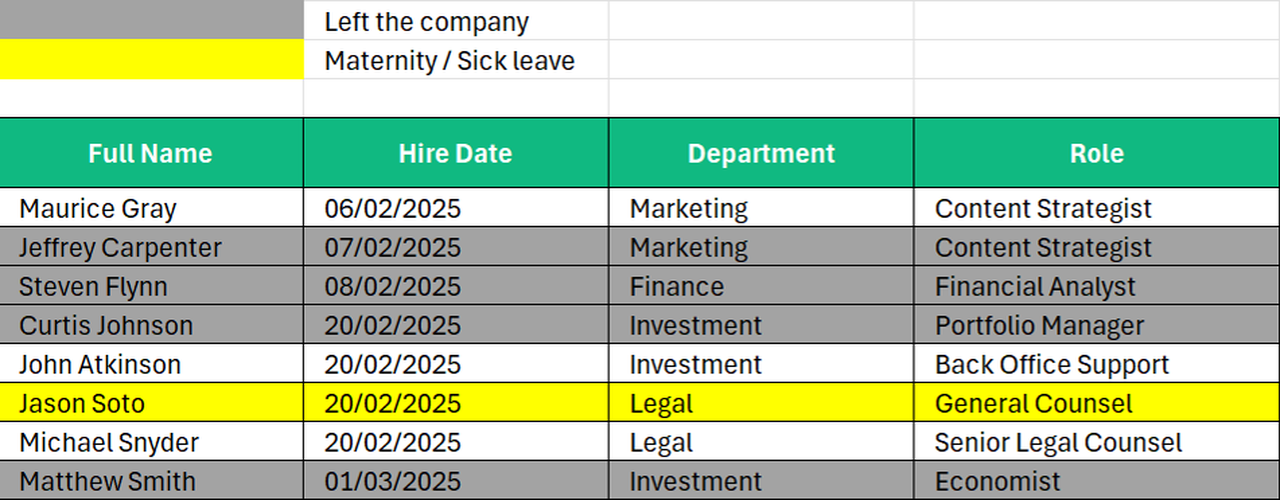
Keep the colours for improving readability but make sure the information is also stored in specific columns (e.g., "Status" and "Long-term absence" below).
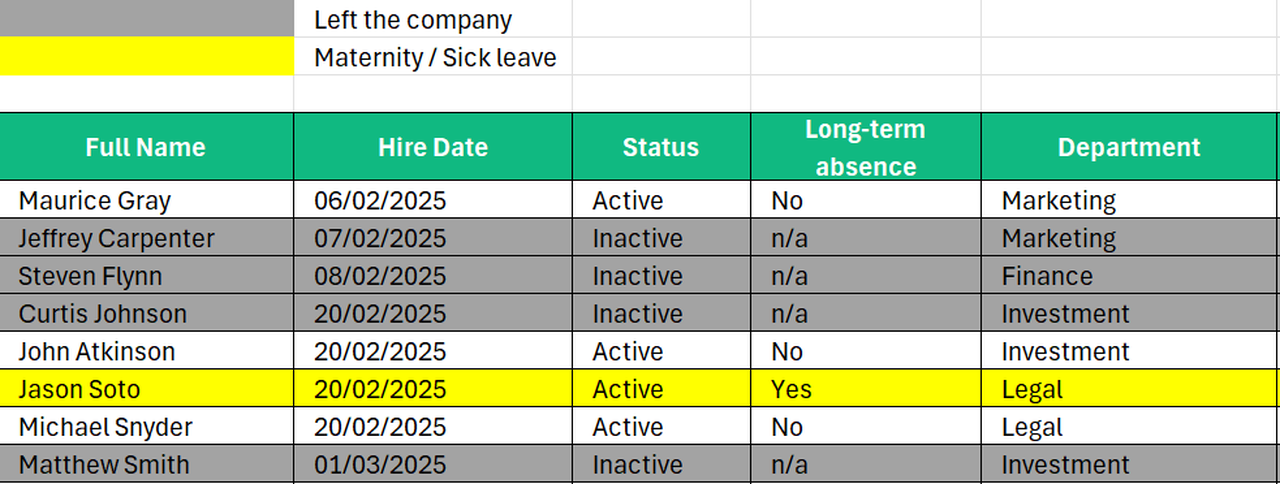
Excel screenshot showing two columns "Status" and "Long-term absence" that retain the critical information. The colours are only helping the user the read the data.
Overusing the Comments Field
Another mistake is to store multiple pieces of meaningful information (hire date, role, manager) inside a comment field or a single free text cell, instead of breaking it out into proper, separate columns.
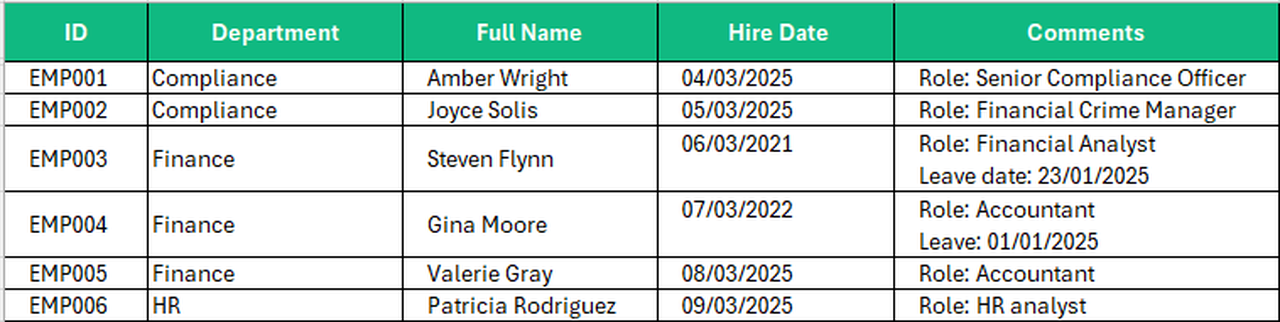
You might say, “I always use the same format so the text can be parsed (i.e., divided)”. In theory, that works but in practice, it rarely does. There’s always a risk of typos or format inconsistency. It is just not worth it.
The solution is simple: add more columns. DO NOT be afraid of extra columns. You might argue that keeping everything within the width of the screen makes the spreadsheet more readable, but that trade‑off isn’t worth it. In the example above, adding columns such as "Role" and "Leave Date" makes the data far more structured and useful.

Not Having a Database at All
I know this sounds dramatic, but I have genuinely heard things like: “Trust me, I remember all the cases if someone needs them.” This is NOT a good strategy at all. That’s a liability. Even if you only expect a few records, build a proper data structure for them. For example, if your policy says “material breaches must trigger a conduct review,” you should build a small database to track those reviews even if there are only a handful per year. Actually, even if there in none. Your future self and your team will thank you.
That’s the end for now. If you recognised your own Excel files in these examples, do not worry, the next articles will provide you with better practices to build effective, compliance- and legal-focused data management.